Keyboard shortcuts
Every default binding in cli-ck. Remap any of them in Settings → Shortcuts.
Source of truth is src/features/layout-chrome/shortcuts/shortcuts.ts in the cli-ck app. Remap from Settings → Shortcuts.
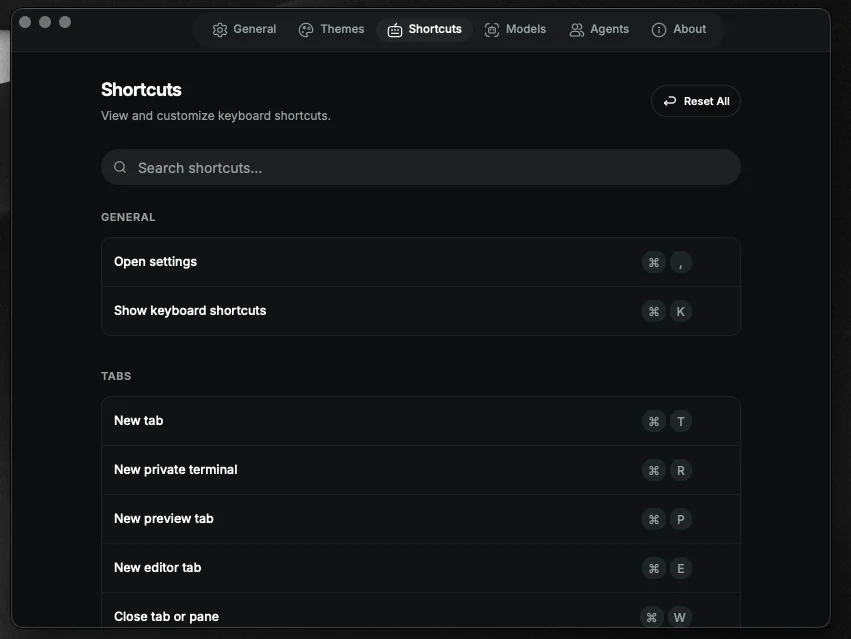
Mod is ⌘ on macOS and Ctrl on Windows and Linux. Ctrl+Tab / Ctrl+Shift+Tab always use Ctrl, including on Mac.
| Action | Default |
|---|
| Open command palette | Mod+P |
| Find in files | Mod+Shift+P |
| Open settings | Mod+, |
| Action | Default |
|---|
| New terminal tab | Mod+T |
| New Blocks terminal | Mod+Shift+T |
| New private terminal | Mod+R |
| New web preview | Mod+Shift+O |
| New editor tab | Mod+E |
| Close tab or pane | Mod+W |
| Next tab | Ctrl+Tab |
| Previous tab | Ctrl+Shift+Tab |
| Jump to tab 1–9 | Mod+1 … Mod+9 |
| Action | Default |
|---|
| Next space | Mod+Shift+] |
| Previous space | Mod+Shift+[ |
| Open spaces | Mod+Shift+S |
Split panes are independent PTY sessions in the same tab. Works on a normal shell tab, not a Blocks terminal. Cap is 4 panes per tab.
| Action | Default |
|---|
| Split pane right (side-by-side) | Mod+D |
| Split pane down | Mod+Shift+D |
| Focus next pane | Mod+] |
| Focus previous pane | Mod+[ |
| Toggle source panel | Mod+G |
| Action | Default | Notes |
|---|
| Clear terminal | ⌘K | macOS only by default. Unbound on Windows/Linux so Ctrl+K stays readline kill-line. |
| Toggle Shell / AI input | Mod+U | Blocks terminal only |
| Previous command block | Mod+↑ | Blocks terminal only |
| Next command block | Mod+↓ | Blocks terminal only |
| Action | Default |
|---|
| Find in terminal | Mod+F |
| Search files | Mod+Shift+F |
| Action | Default |
|---|
| Toggle AI agent | Mod+I |
| Ask AI about selection | Mod+J |
| Action | Default | Notes |
|---|
| Toggle file explorer | Mod+B / Mod+Shift+B | Plain Mod+B is skipped while a terminal is focused (Claude Code uses it). Mod+Shift+B always toggles. |
| Toggle file explorer focus | Mod+Shift+E | |
| Zoom in | Mod+= / Mod+Shift++ | |
| Zoom out | Mod+- / Mod+Shift+_ | |
| Reset zoom | Mod+0 | |
| Toggle zen mode | Mod+Shift+Z | |
Display-only. CodeMirror's historyKeymap owns these. cli-ck lists them in Settings but does not intercept them.
| Action | Default |
|---|
| Undo | Mod+Z |
| Redo | Mod+Y |